Remove metadata in PDF documents
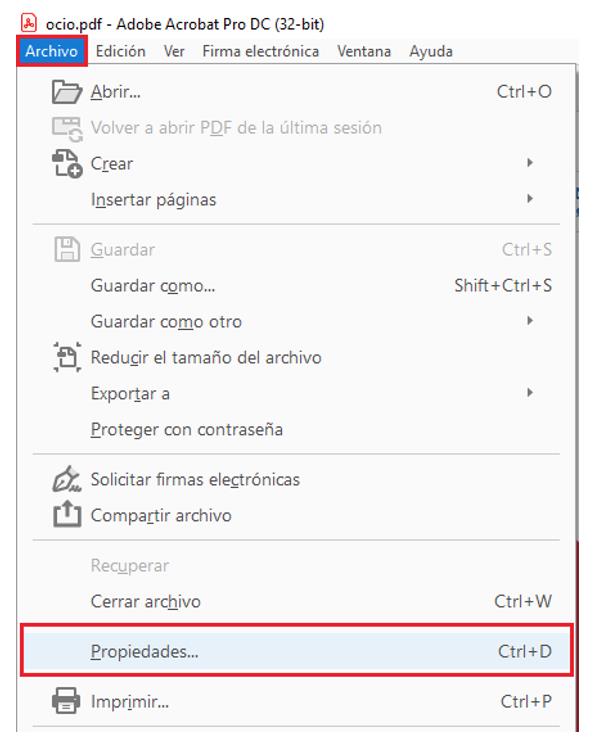
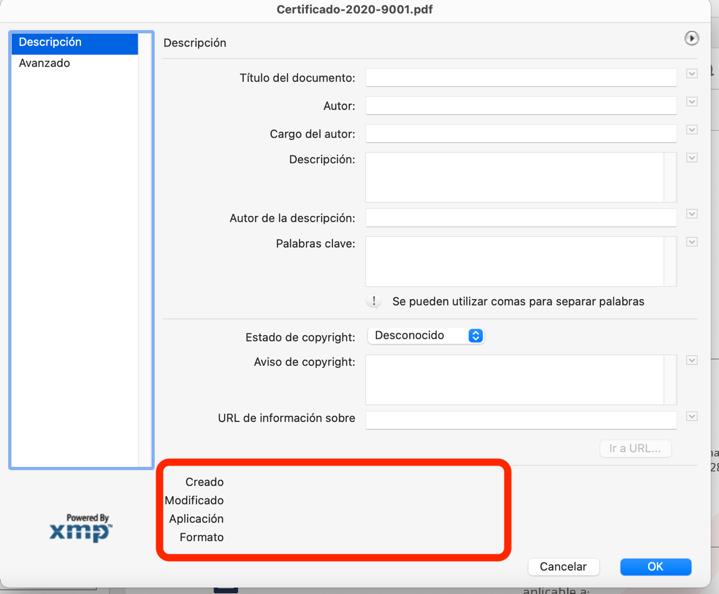
a) To view the metadata, it is accessed from the "File" menu option, selecting "Properties".
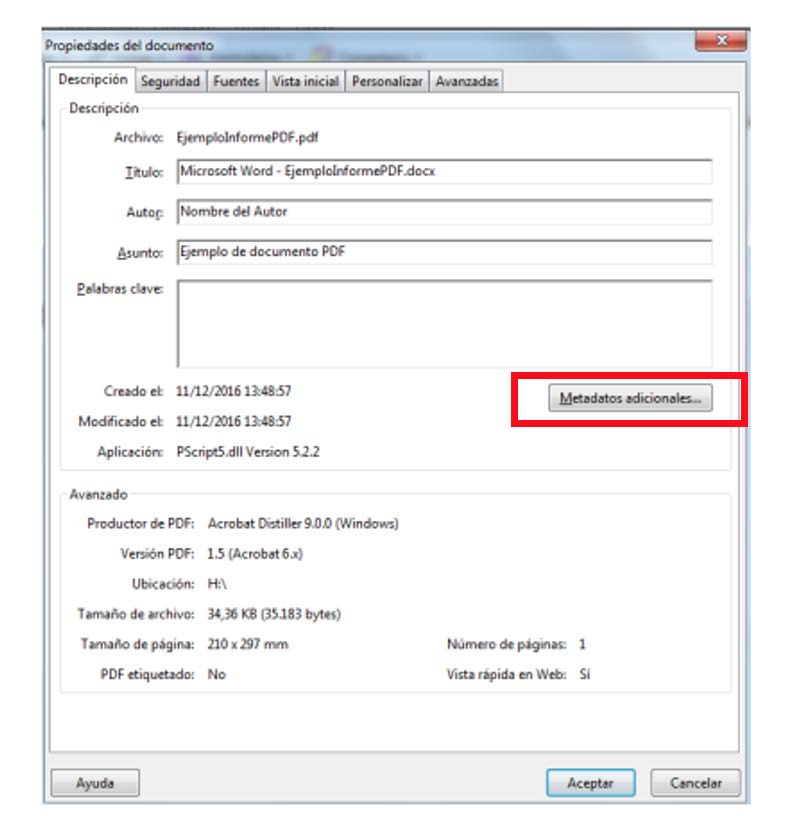
b) To remove metadata from our PDF, click on "Additional metadata".
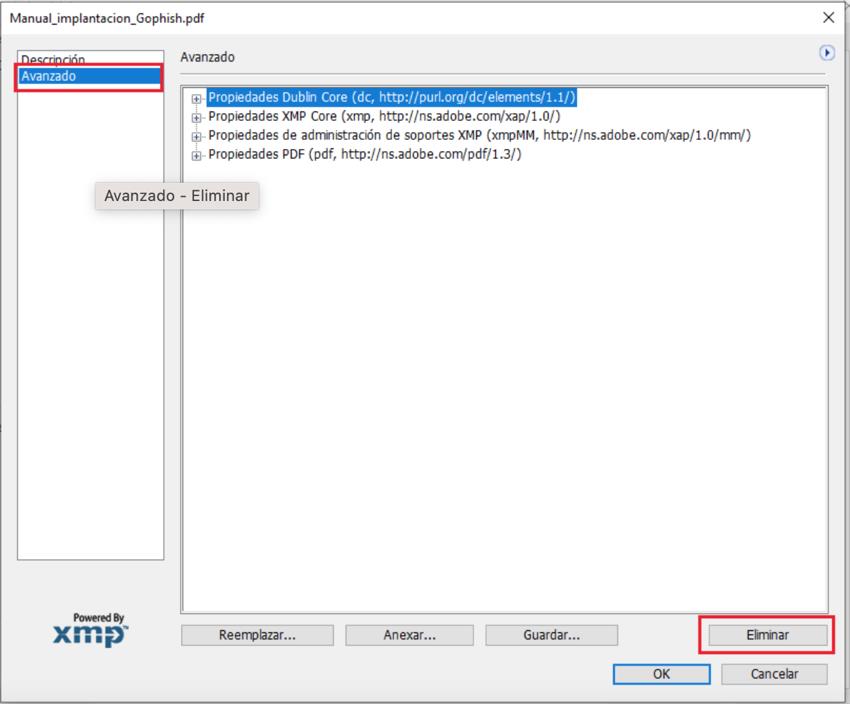
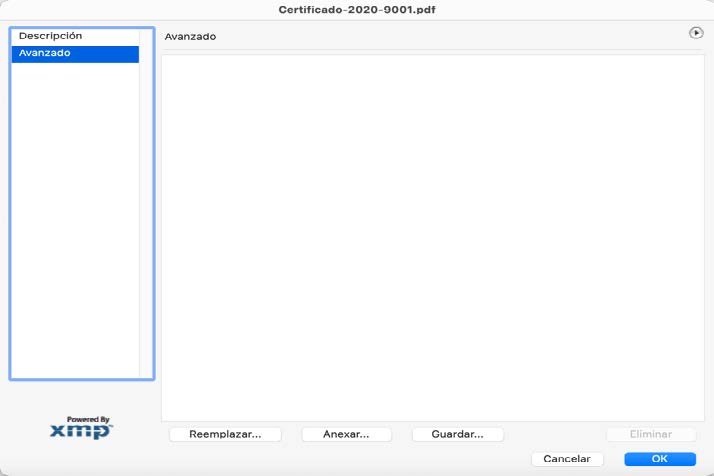
c) Then a new window will appear, select "Advanced" and a list of lines will appear on the right of the window. We click on one of them and click on the "Delete" button. Then repeat this process for each of them.
Finally, our PDF document will be clean of metadata.
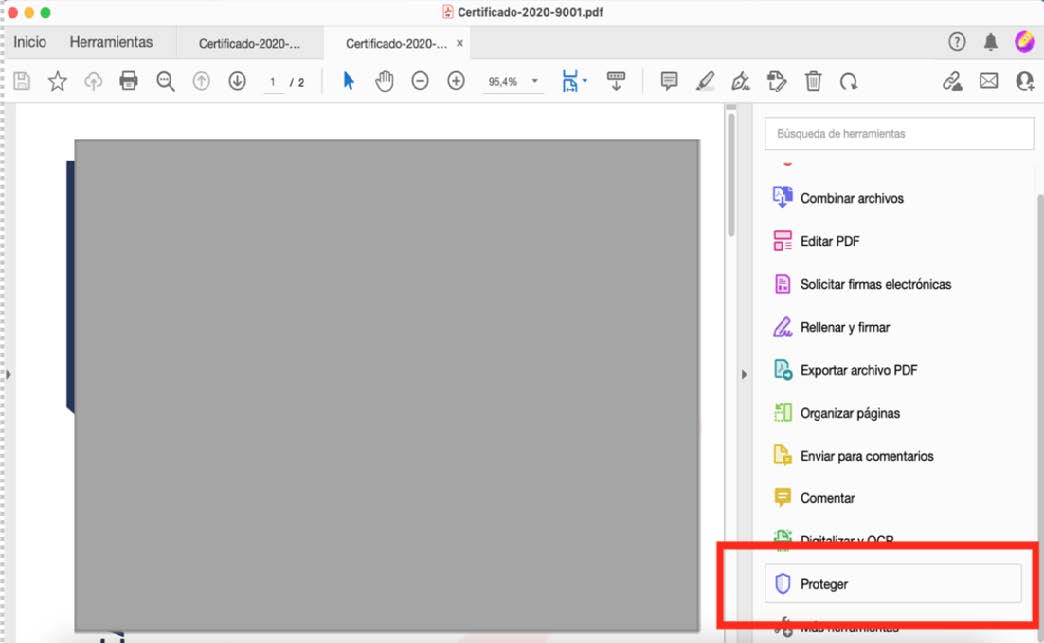
Another option within Adobe Acrobat Pro to remove all hidden information and additional metadata is to use the Protect tool.
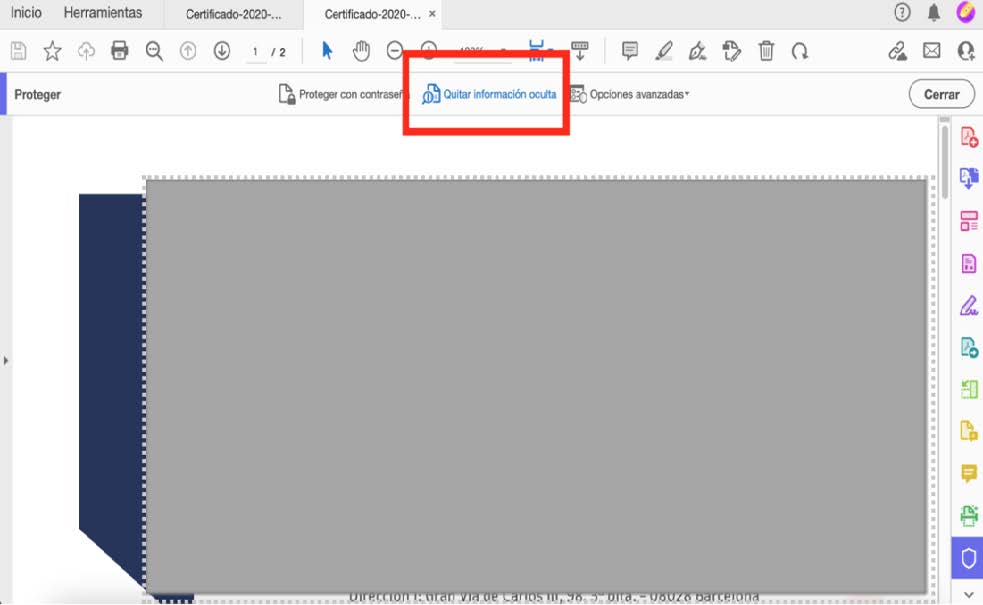
a) We open our document and click on the “Protect” tool.
 b) A secondary menu bar will appear at the top. We click on "Remove hidden information".
 c) A left sidebar will open, where it will begin to search for hidden information that the document may contain.
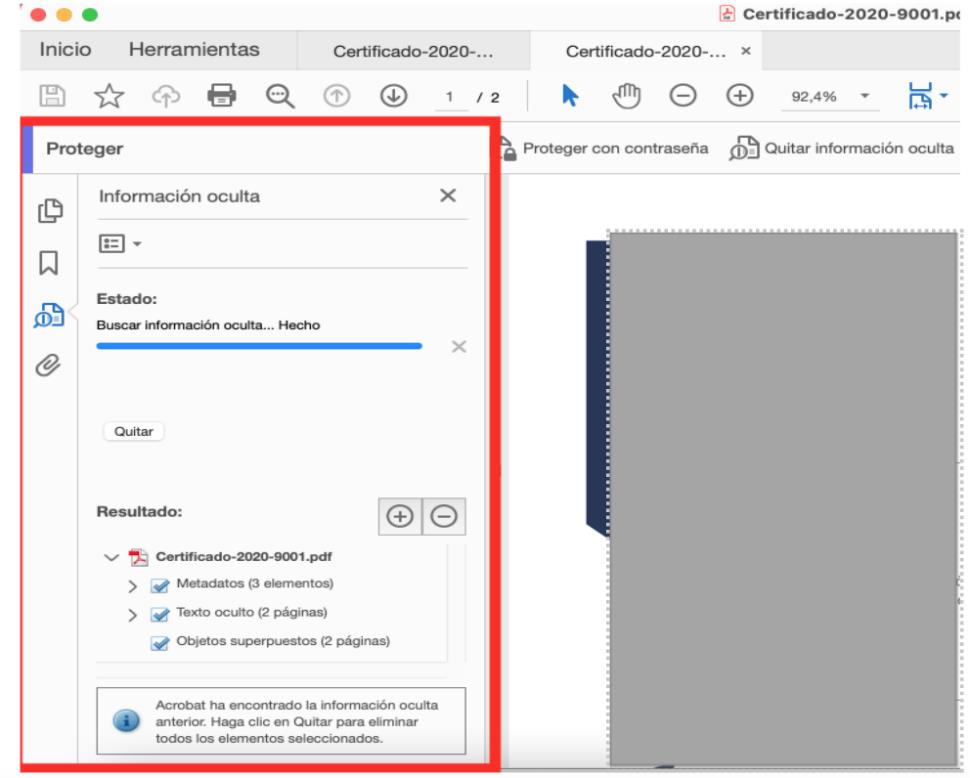 d) After finishing the search, it will show us the result with the type of information found. We have to check the boxes of the information we want to remove from the document.
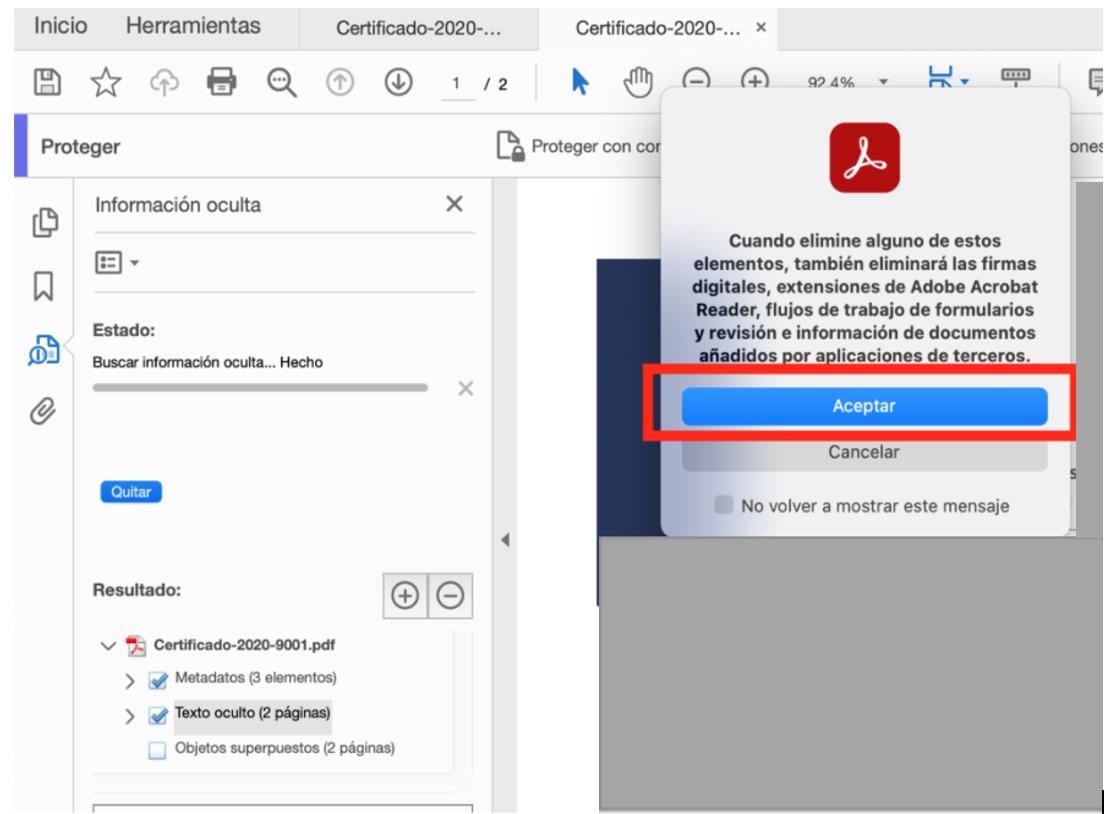
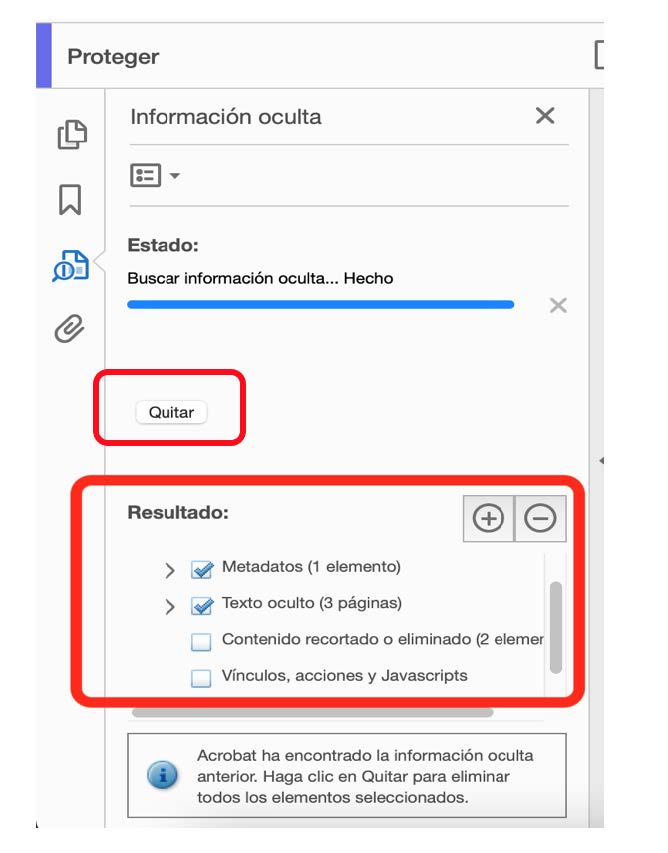 e) Click on "Remove" to start the removal. Then a pop-up window will appear and click "Accept".
f) Finally, check if our document is free of metadata by entering "File" >>> "Properties" and save the document.
 The person posting or sharing the document will be responsible for ensuring that the document does not contain metadata.